
# 基于html开发
可以将从官网下载的源码,放置到NGINX或Tomcat等服务器中,再在代码中引用即可
# 示例代码
<!DOCTYPE html>
<html lang="en">
<head>
    <!-- Use correct character set. -->
    <meta charset="utf-8" />
    <!-- Tell IE to use the latest, best version. -->
    <meta http-equiv="X-UA-Compatible" content="IE=edge" />
    <!-- Make the application on mobile take up the full browser screen and disable user scaling. -->
    <meta
            name="viewport"
            content="width=device-width, initial-scale=1, maximum-scale=1, minimum-scale=1, user-scalable=no"
    />
    <title>cesium初始化</title>
    <script src="http://192.168.1.1:8088/lib/Cesium-1.78/Build/Cesium/Cesium.js"></script>
    <style>
        @import url(http://192.168.1.1:8088/lib/Cesium-1.78/Build/Cesium/Widgets/widgets.css);

        html,
        body,
        #cesiumContainer {
            width: 100%;
            height: 100%;
            margin: 0;
            padding: 0;
            overflow: hidden;
        }
    </style>
</head>
<body>
<div id="cesiumContainer"></div>
<script>
    Cesium.Ion.defaultAccessToken = "your token";
    let viewer = new Cesium.Viewer("cesiumContainer");
</script>
</body>
</html>
1
2
3
4
5
6
7
8
9
10
11
12
13
14
15
16
17
18
19
20
21
22
23
24
25
26
27
28
29
30
31
32
33
34
35
36
2
3
4
5
6
7
8
9
10
11
12
13
14
15
16
17
18
19
20
21
22
23
24
25
26
27
28
29
30
31
32
33
34
35
36
# 基于vue-cli2.X
# 创建工程
创建一个名为 cesium-demo 的工程
# 使用 webpack 打包工具初始化一个名为 cesium-demo 的工程
vue init webpack cesium-demo
1
2
2
# 安装依赖
我们需要安装 vue-router、element-ui、sass-loader 和 node-sass 四个插件
# 进入工程目录
cd cesium-demo
# 安装 vue-router
npm install vue-router --save-dev --registry=https://registry.npm.taobao.org
# 安装 element-ui
npm i element-ui -S --registry=https://registry.npm.taobao.org
# 安装 SASS 加载器
npm install sass-loader node-sass --save-dev --registry=https://registry.npm.taobao.org
1
2
3
4
5
6
7
8
2
3
4
5
6
7
8
# 安装剩余依赖(指定镜像地址)
npm install --registry=https://registry.npm.taobao.org
1
2
2
# 配置cesium
vue是单页面应用,这里我在index.html中配置cesium依赖
<!DOCTYPE html>
<html lang="">
<head>
    <meta charset="utf-8">
    <meta http-equiv="X-UA-Compatible" content="IE=edge">
    <meta name="viewport" content="width=device-width,initial-scale=1.0">
    <link rel="icon" href="<%= BASE_URL %>favicon.ico">
    <link rel="stylesheet" href="https://localhost/lib/Cesium-clipping/Widgets/widgets.css">
    <title><%= htmlWebpackPlugin.options.title %></title>
</head>
<body>
<noscript>
    <strong>We're sorry but <%= htmlWebpackPlugin.options.title %> doesn't work properly without JavaScript enabled.
        Please enable it to continue.</strong>
</noscript>
<div id="app"></div>
<!-- built files will be auto injected -->
<!--<script src="https://data.sunbt.ltd/lib/Cesium-clipping/Cesium.js"></script>-->
<script src="https://localhost/lib/Cesium-1.89/Build/Cesium/Cesium.js"></script>
</body>
</html>
1
2
3
4
5
6
7
8
9
10
11
12
13
14
15
16
17
18
19
20
21
2
3
4
5
6
7
8
9
10
11
12
13
14
15
16
17
18
19
20
21
# 示例代码
在这里就可以直接使用cesium的方法
<!-- home -->
<template>
  <div class="home">
    <div id="cesiumContainer"></div>
  </div>
</template>

<script>
export default {
  name: "helloWorld",
  data() {
    return {
      map: {},
      _viewer:undefined,
    };
  },
  components: {},
  created() {},
  mounted() {
    this.initMap()
  },
  computed: {},
  methods: {
    initMap() {
      //Cesium token
      Cesium.Ion.defaultAccessToken = "your token";
      this._viewer = new Cesium.Viewer('cesiumContainer');
    }
  }
};
</script>

<style scoped>

.home {
  height: 100%;
  width: 100%;
  margin: 0;
  padding: 0;
  overflow: hidden;
}
#cesiumContainer {
  height: 90%;
  width: 100%;
  margin: 0;
  padding: 0;
  overflow: hidden;
}

</style>
1
2
3
4
5
6
7
8
9
10
11
12
13
14
15
16
17
18
19
20
21
22
23
24
25
26
27
28
29
30
31
32
33
34
35
36
37
38
39
40
41
42
43
44
45
46
47
48
49
50
2
3
4
5
6
7
8
9
10
11
12
13
14
15
16
17
18
19
20
21
22
23
24
25
26
27
28
29
30
31
32
33
34
35
36
37
38
39
40
41
42
43
44
45
46
47
48
49
50
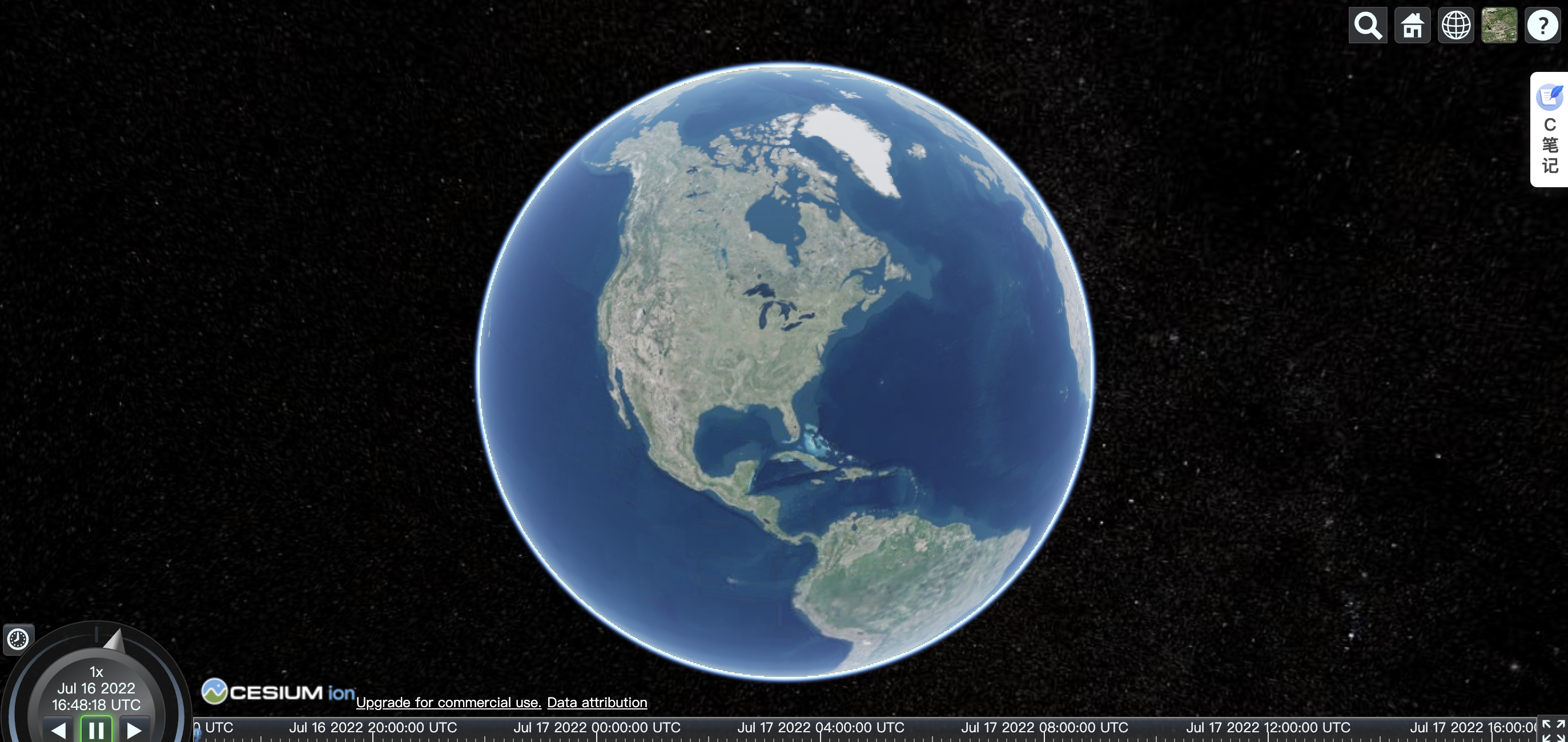
# 问题
# 高分辨率屏幕加载瓦片地图不清晰
viewer之后加入以下代码
let viewer = new this.Cesium.Viewer("cesiumContainer", {
  //加载在线谷歌地图
  imageryProvider: new this.Cesium.UrlTemplateImageryProvider({
    url: "http://www.google.cn/maps/vt?lyrs=y@189&gl=cn&x={x}&y={y}&z={z}"
  })
});
viewer._cesiumWidget._supportsImageRenderingPixelated = this.Cesium.FeatureDetection.supportsImageRenderingPixelated();
viewer._cesiumWidget._forceResize = true;
if (this.Cesium.FeatureDetection.supportsImageRenderingPixelated()) {
  var vtxf_dpr = window.devicePixelRatio;
  // 适度降低分辨率
  while (vtxf_dpr >= 2.0) {
    vtxf_dpr /= 2.0;
  }
  //alert(dpr);
  viewer.resolutionScale = vtxf_dpr;
}
1
2
3
4
5
6
7
8
9
10
11
12
13
14
15
16
17
2
3
4
5
6
7
8
9
10
11
12
13
14
15
16
17